Expression Pattern Comparison
Introduction
The expression pattern comparison tool identifies anatomical entities with gene expression or absence of expression based on a provided list of genes. The tool highlights the anatomical entities where the highest proportion of input genes are expressed or not expressed. When the listed genes belong to a single species, their expression is compared in all anatomical entities with expression data. Alternatively, when the listed genes are orthologs (or groups of orthologs) belonging to different species, their expression is compared in homologous anatomical entities (deriving from a common ancestral entity in the least common ancestor of the selected species) with expression data. The examples in this tutorial have been generated using Bgee release 15.0.

Gene selection
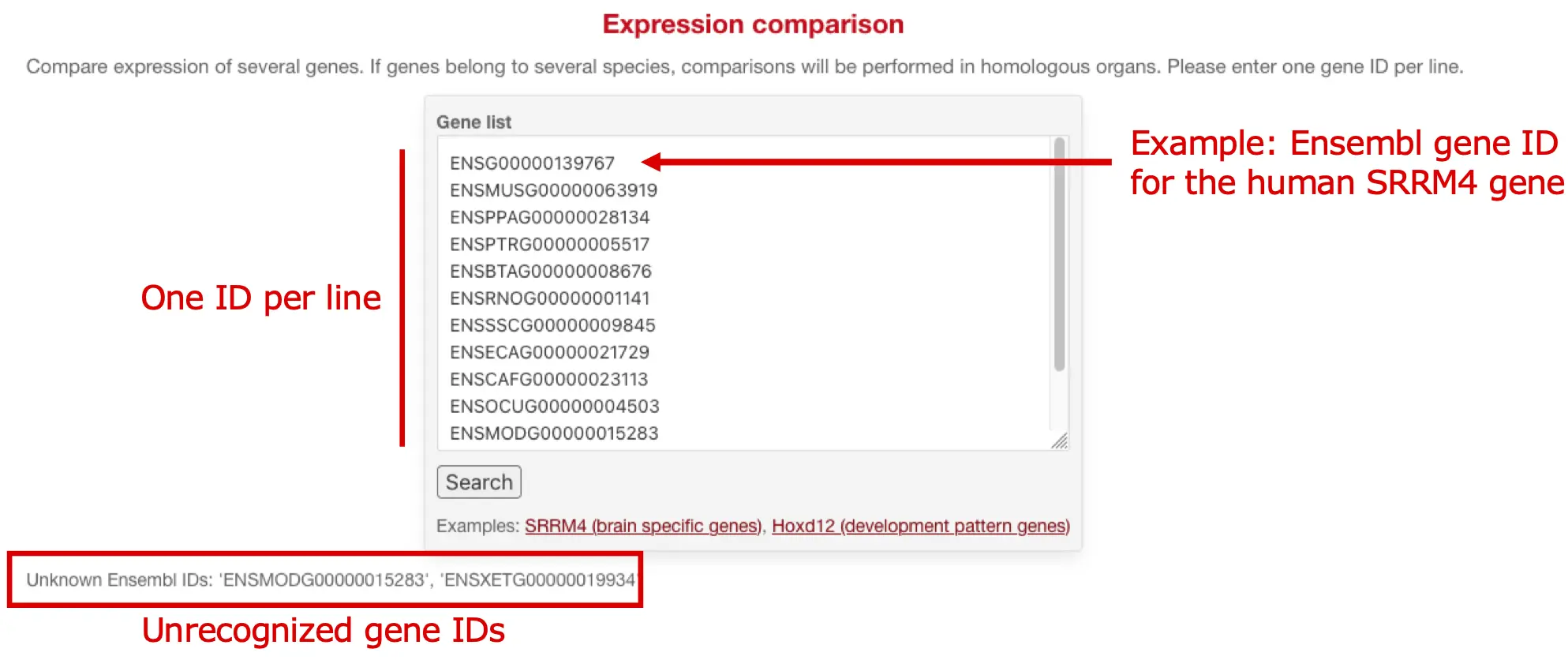
The first step for comparing gene expression is to enter a list of gene IDs in the text box area.
One gene ID must be entered per line. If a gene ID is not recognized, it will be listed below the text area after submission. A minimum of two gene IDs must be entered.
Gene identifiers
Unique identifiers from the genome source database must be used: for instance, ENSG00000139767 must be used for selecting the SRRM4 human gene, as the genome source database for human in Bgee is Ensembl. Gene names (e.g. SRRM4) are not recognized.
The genome source database can be either Ensembl, EnsemblMetazoa, or RefSeq. The genome source database for a species can be found on the Bgee species information page, accessible from the list of species.
Finding orthologous genes
If you wish to identify anatomical entities with shared expression or absence of expression between different species, you must enter the orthologous genes of interest as input. For a given gene, you can find orthologous genes on the gene page (link) in the Orthologs section.
Results table
Each row in the result table represents one anatomical entity, in which the presence and absence of expression for the selected genes and species are displayed.
Description of results
- Anatomical entities: the name of the anatomical entity in that row, for which expression of the list of genes is displayed.
- If the genes entered belong to several species, the comparisons will be performed only in anatomical entities with valid relations of homology between the selected species, and with expression data for some of the selected genes.
- Several anatomical entity terms can be displayed in a row when the same ancestral anatomical entity has evolved into distinct tissues in the selected species. For instance, the homologous organ of the human "lung" is, in zebrafish, "swim bladder". If those species were selected, a row could display the expression results by grouping "lung" and "swim bladder" together. More information about the relations of homology between anatomical entities used in Bgee can be found in the documentation for the anatomical homology search.
- If the genes belong to a single species, all anatomical entities with expression data for the selected genes are considered.
- If the genes entered belong to several species, the comparisons will be performed only in anatomical entities with valid relations of homology between the selected species, and with expression data for some of the selected genes.

- Conservation score: a metric representing the proportion of genes from the input list that have expression or absence of expression in the anatomical entity.
- Corresponds to the difference between the number of genes with presence of expression and the number of genes with a reported absence of expression (meaning, the sum of the number of genes with presence of expression and of the number of genes with reported absence of expression), divided by the total number of genes with expression data for that anatomical entity. The conservation score can thus go from -1 to +1, with +1 showing the highest possible conservation score where all genes with data are expressed, and -1 showing conservation for absence of expression, where all genes with data exhibit a reported absence of expression in the anatomical entity.
- Max expression score: denotes the highest expression score attained among genes exhibiting presence of expression. For more information on how the expression score is calculated, see the expression call documentation.
- Genes with presence of expression: number of genes with presence of active expression in the anatomical entity.
- Genes with absence of expression: number of genes with reported absence of expression in the anatomical entity.
- Genes with no data: number of genes for which there is no expression data available in the anatomical entity.
- Species with presence of expression: number of species whose genes have presence of active expression in the anatomical entity.
- Species with absence of expression: number of species whose genes have a reported absence of expression in the anatomical entity.
- See details: click on this cell to expand the row, and see the complete list of genes and species related to each cell.

Sorting the results
By default, the results are sorted by anatomical entities with the highest conservation of expression between the provided genes and the highest expression level. Therefore, the sorting is based on multiple columns:
- descending order of "conservation score"
- then ascending order of "genes with absence of expression"
- then descending order of "max expression score"
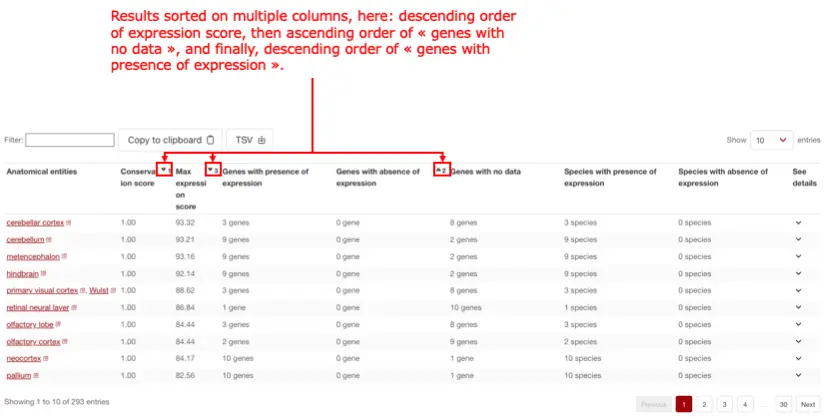
It is possible to order by anatomical entities where the genes have a conserved absence of expression, by reverting the ordering by ascending order of "conservation score": a conservation score of -1 means that, among the genes with data in that anatomical entity, all of them are reported as being not expressed in that location.
Depending on your priorities (best data coverage, or lowest reported absence of expression, etc.), you might want to try different selections of columns for sorting the results. Press "shift", and while holding it, click on the columns you want to use. Click twice on a column to reverse the sorting from ascending to descending. We recommend that you always include "conservation score" and "max expression score".
Searching the results
You can search for a term among the "anatomical entities" values overall results, by using the "Filter" field above the result table. This will perform a partial match search.
Export results
You can export all the results (not only the current page) in a TSV file by clicking the button "TSV". Results are not sorted in the export, thus sorting using columns has no effect on the generated TSV file.
